
Turn your Day One journal into a printed book
Years of entries, photos and places — as a book you can hold. Export your journal, open it in Mosaic Collage Maker, and it lays out every page for you. Built on your own computer; nothing is uploaded.
Your size · your printer · your paper
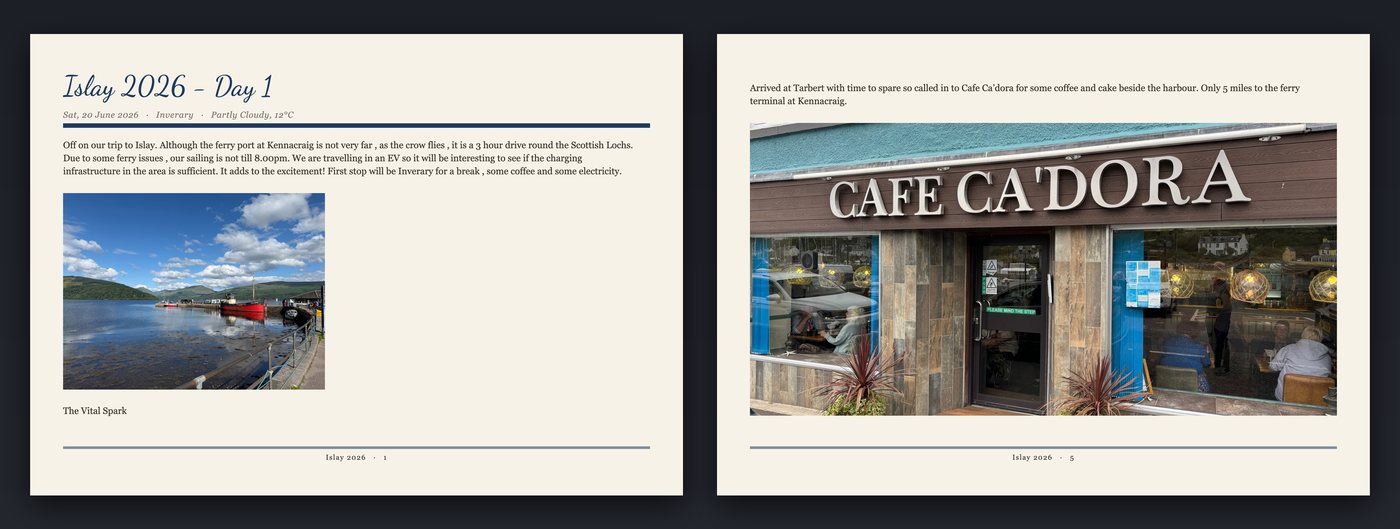
Two kinds of book
Journal
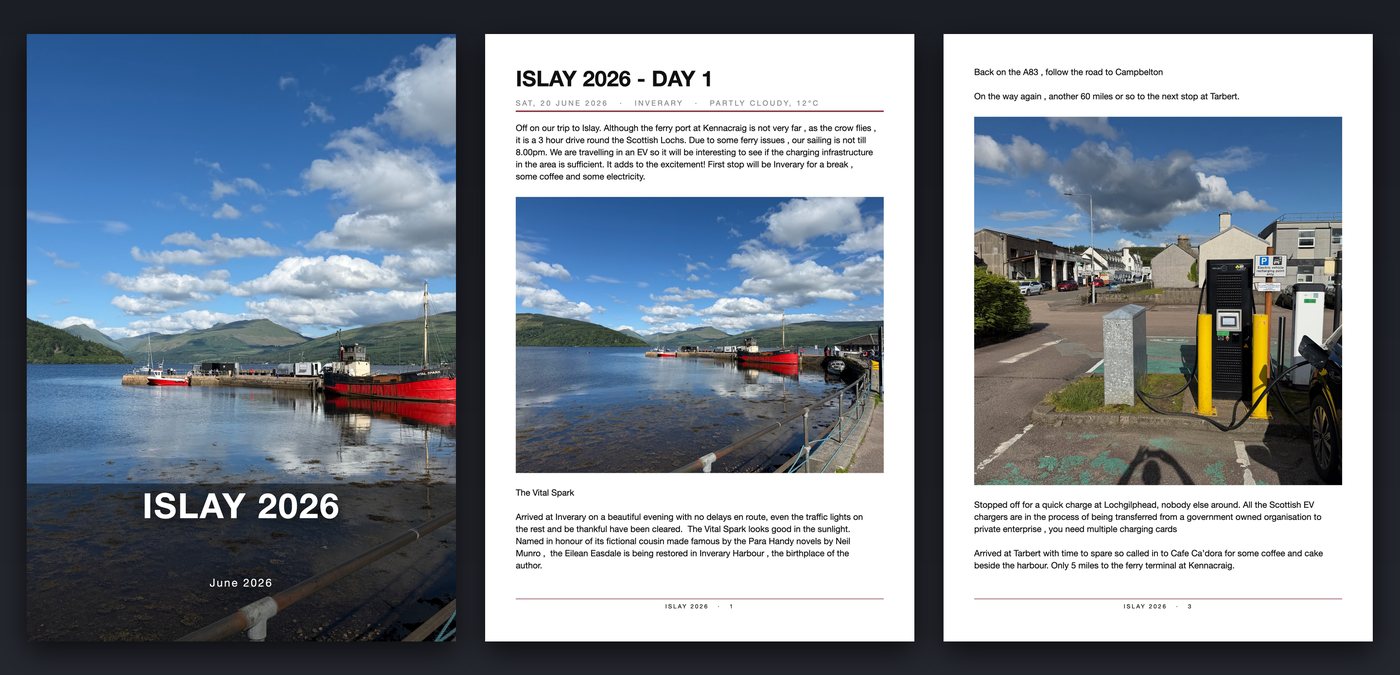
One designed page per entry, with its heading, date, place and your writing, and the photos fitted to the page — keeping your writing between the photos where you wrote it. Entries that run on continue across pages.
Photobook
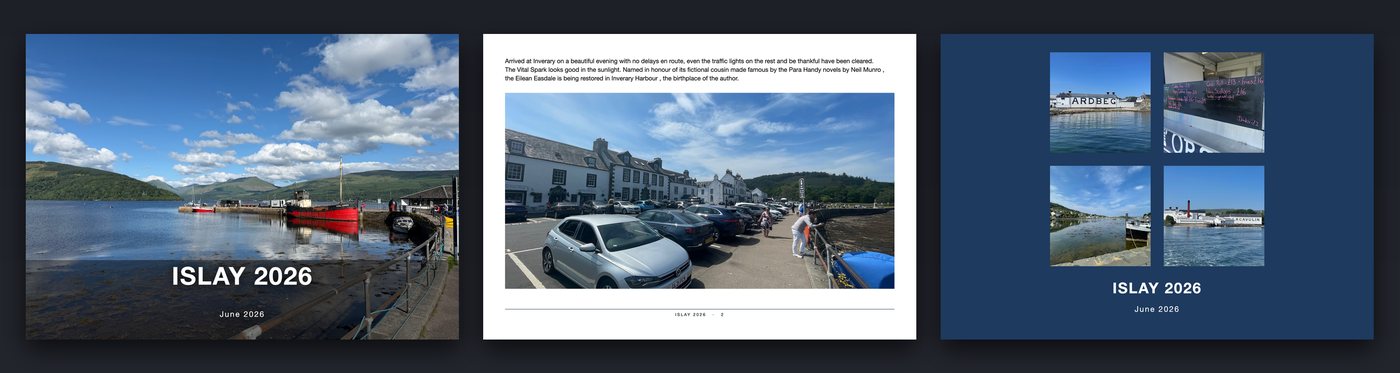
Your photos poured across pages in fresh mosaic layouts, with their captions. Best when you want a picture-led book and the writing matters less.
What you need
- Mosaic Collage Maker on a Mac or Windows PC.
- Your journal exported from Day One as a zip file (step 1 below).
- About ten minutes to choose how the book should look. A big journal then takes a while to read — a progress bar shows it working.
Step by step
Export your journal from Day One
In Day One, export the journal as JSON with photos included. You get a single
.zipfile containing the journal and a photos folder. Keep it as one zip — don't unzip it. (Day One's menu wording differs between versions; its own help shows where the export option is.)Using Daykeep instead? Export the journal from Daykeep for Mosaic Collage Maker — the same Import button reads it.
Click “Import from Day One…”
In Mosaic Collage Maker click Import from Day One… in the toolbar and choose the zip. A progress panel shows the file being opened, the journal read, and the photos loading, so you can see it is working even with thousands of photos.

The progress panel while a journal is read Choose how the book should look
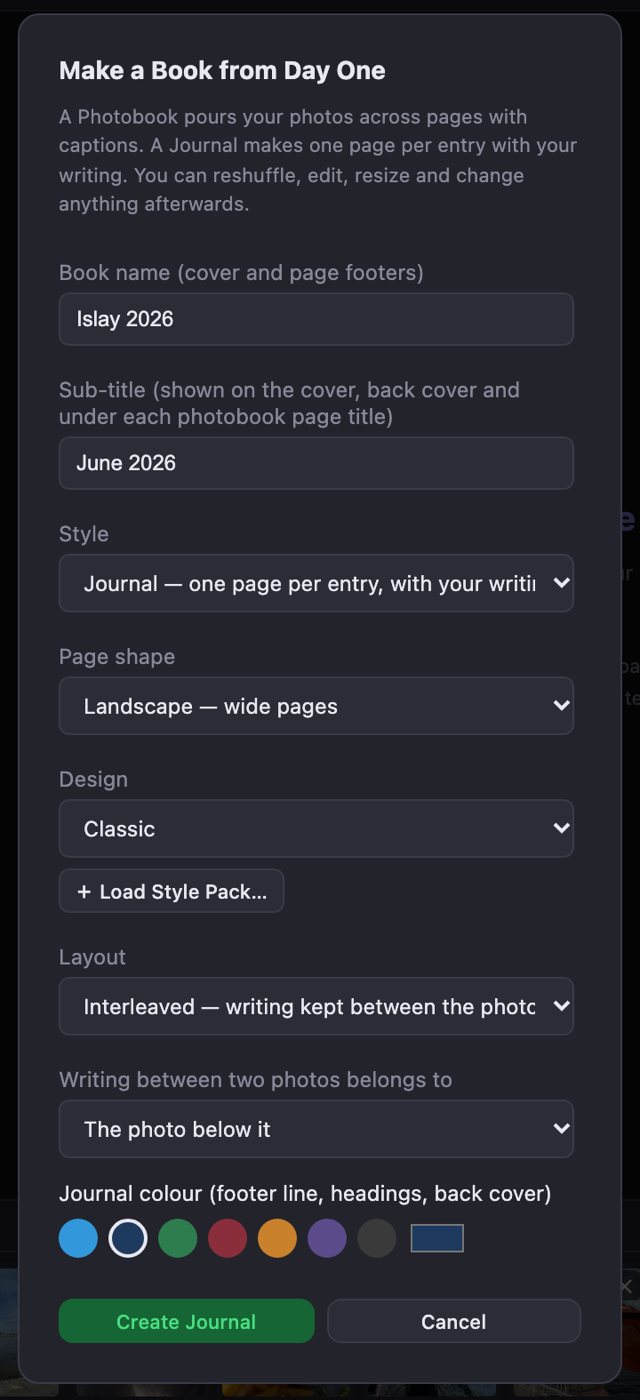
The Make a Book window When the journal has been read, a window asks how to build the book:
- Book name — shown on the cover, back cover and in every page footer. Change it once here instead of on every page.
- Sub-title — by default the date range of the journal; shown on the cover and back cover (and under each page title in a photobook). Type anything, or clear it.
- Style — Journal or Photobook (see above).
- Page shape — landscape, portrait or square. Portrait suits writing-heavy journals; landscape suits photo-led ones.
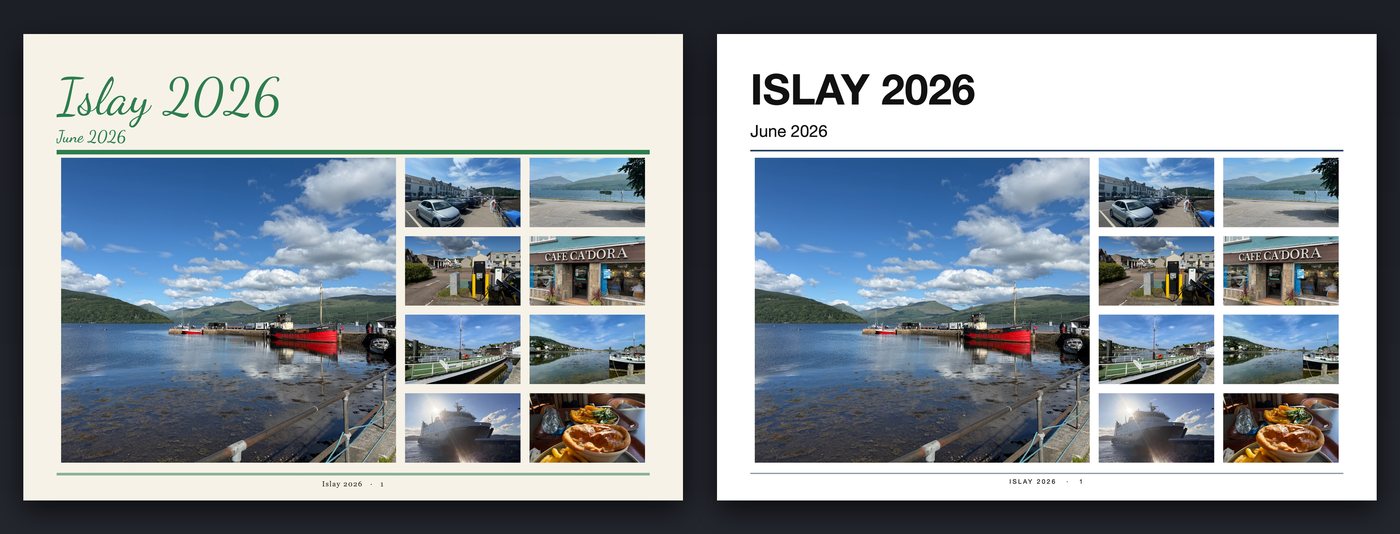
- Design — Classic or Editorial are included; Load Style Pack… adds more. The same designs work for journals and photobooks.
- Layout (Journal) — Interleaved keeps writing between photos as you wrote it; Writing first puts each entry's heading and text first, then its photos.
- Writing between two photos belongs to (Interleaved) — a line of text between two photos can describe either one. Choose the photo below, the photo above, or leave as written.
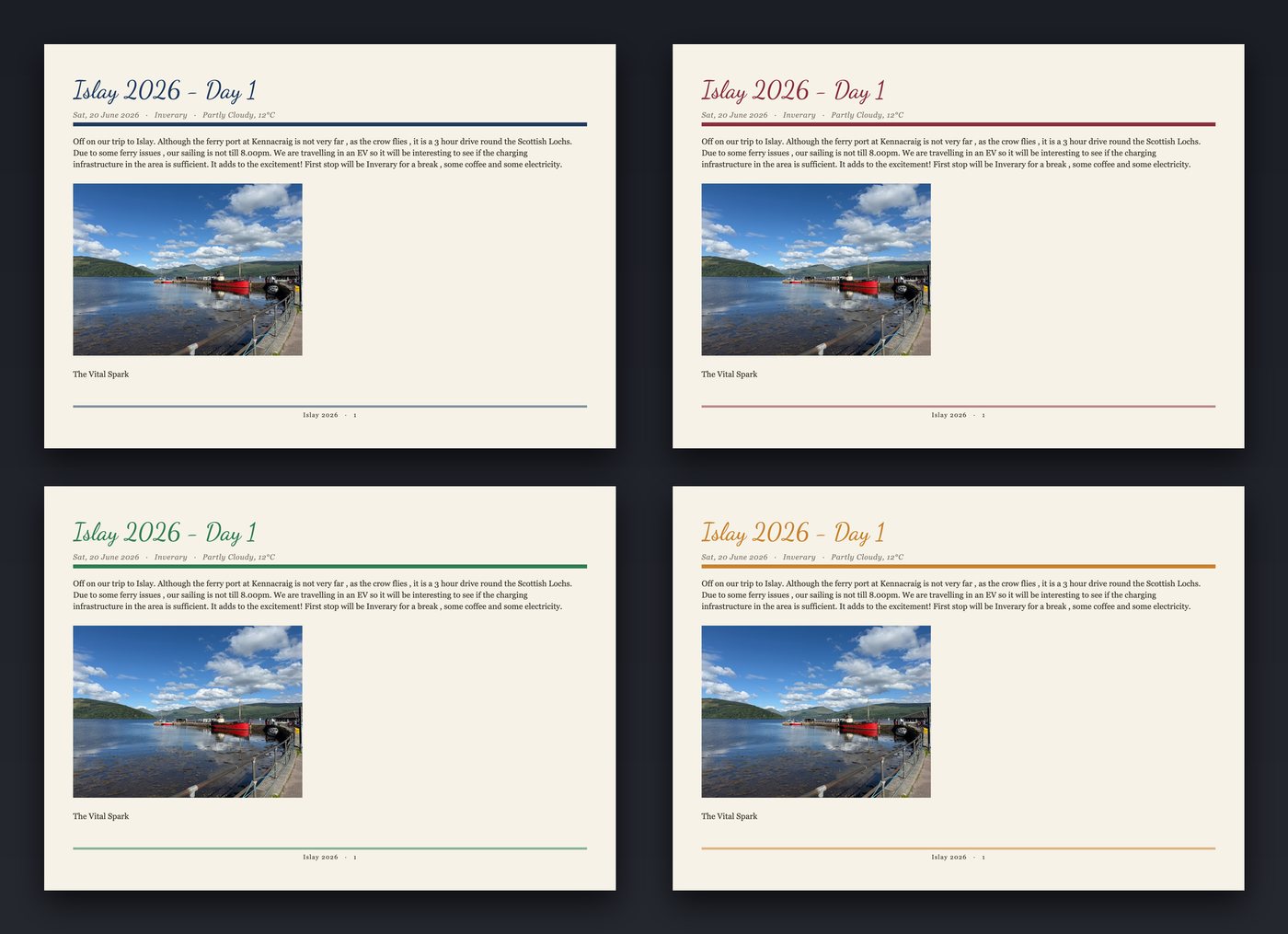
- Journal colour — the footer line, heading rules and back cover. Pick a swatch or any colour.
- Photos per page (Photobook) — roomy, balanced or packed.
Press “Create Journal” (or “Create Photobook”)
The book is built on screen in moments. Every page is an ordinary page in the app: move or resize a photo, edit or re-caption text, change the design, reshuffle a photobook page.
Tidy up if you like
- A note beside the wrong photo? Click the text box and use Move to page above or Move to page below; the photos make room for it.
- Photos on a page by themselves expand to fill it, with room left for a line of text and clear space above the footer.
- Different paper size? Use Resize pages to this size and choose Keep my arrangement.
Export and print
Export the whole book as a single print-ready PDF (or as JPEGs) and take it to any printer or photobook service. You own the file, so you can reprint it whenever you like. See Page Setup for the page sizes printers ask for.
What it looks like
Print it your way: your size, your printer, your paper
Day One can print a book for you from the iPhone or iPad app. According to Day One's own guide that means one page size (5.5 × 8.5 inches), paperback or hardcover, one kind of paper, and no way to rearrange photos or change the type. It is convenient — and if that suits you, it is a fine choice. If you want a different size, a particular printer, or a better paper, you need the journal as a file you control.
That is what Mosaic Collage Maker gives you: the finished book as a print-ready PDF (or JPEGs) that you can take to any printer. So these choices are yours:
| Day One's own printed book* | Your journal in Mosaic Collage Maker | |
|---|---|---|
| Page size | One size, 5.5 × 8.5 in | Any size in millimetres at 300 DPI — A3, A4, A5, US Letter, square, or the exact size your printer asks for, saved as a named preset |
| Printer | Day One's print service, ordered in the iOS app | Any photobook service or printer that takes a PDF or JPEGs — high-street, online or local |
| Cover and binding | Paperback or hardcover | Whatever your chosen printer offers: soft cover, hardback, lay-flat, spiral… |
| Paper | One paper choice | Matt, gloss, silk, lay-flat or premium photo paper — your printer's range |
| Layout | Photos and type can't be rearranged in the app | Every page editable: move, resize, re-crop, add text, change the design |
| Copies | Ordered one at a time through the app | You own the file — reprint, give copies, or restyle later |
*As published by Day One at the time of writing; its options may change, so check its own page. Day One's service has one real advantage: you can order from inside the app without handling a file.
Getting the size right for your printer
Printers rarely use exact paper sizes: an "A3" photobook is often not 420 × 297 mm. Ask your printer for its trim size in millimetres (and whether it wants single pages or a double-page spread), choose Custom in the page size list, and save it as a preset. Choose the shape at import, and export a PDF with the optional 3 mm bleed if your printer asks for it. The help guide lists sizes tried with Photobox, Colorland, Printerpix and Mixbook. Always order one test page or a small book before committing to a large job.
One big book, or several
Your whole journal can be one project of hundreds of pages. How many pages a single book can have is up to your printer — most services have a maximum, so for a long journal you can split it, for example one volume per year, each with its own name and colour.
Make it yours: colour and design
The journal colour you pick is used for the footer line, heading rules and back cover, so one choice changes the whole feel of the book. The design sets the page colour, the title typeface, and whether photos get a frame. Classic and Editorial are included; more come as Style Packs, and one pack works for both journals and photobooks.
What comes across, and what doesn't
- Included: entry text, dates, places, weather and photos with their captions, in order.
- Titles: a short first line of an entry is used as its title; otherwise the date is the heading.
- Plain text only: text colours and highlights (Day One's newer colour feature) are not carried into the book — coloured words come out in the design's normal text colour. Bold and italics are not shown as such either; the words themselves are all there.
- Not included: videos, audio and PDF attachments. The import window says how many were left out, and entries that held only those are skipped.
Tips and fixes
- A very large journal. Thousands of photos work, and a progress bar shows it is busy. It needs plenty of memory while the book is built and exported, so close other big apps first and allow extra time.
- Which paper size? Choose the shape at import (landscape, portrait or square). Change it later with Resize pages to this size → Keep my arrangement.
- Notes in the wrong place. Set Writing between two photos belongs to at import to match how you wrote, then use Move to page above/below for the odd one.
Private by design
The export file is read on your own computer and the book is built there. There is no account, no upload and no tracking. Your journal never leaves your machine. The privacy page has the details.
Common questions
Can I choose my own book size, printer and paper?
Yes. Mosaic Collage Maker produces a print-ready PDF (or JPEGs) in any page size you set in millimetres, so you can send it to any printer or photobook service and use their own choices of cover, binding and paper. Day One's own printed books are a single size (5.5 × 8.5 inches), according to Day One's guide.
Is my journal uploaded anywhere?
No. Mosaic Collage Maker reads the export file on your own computer and builds the book there. There is no account and nothing is sent to a server.
How do I get my journal out of Day One?
Use Day One's export and choose JSON with photos included. You get one zip file containing the journal and a photos folder. Import that zip as it is — do not unzip it. Day One's menu names vary between versions, so check Day One's own help if you can't find the option.
Can I use a Daykeep journal?
Yes. Daykeep can export a journal for Mosaic Collage Maker, and the same Import button reads it, keeping your writing, captions and photos in order.
Are videos, audio and PDFs included?
No. Only photos and writing come into the book. The import window tells you how many attachments were left out, and an entry that contained only those is skipped.
My journal is huge. Will it work?
Journals of several gigabytes and thousands of photos have been imported. A progress bar shows the file being read. Large journals need plenty of memory while the book is built and exported, so close other large apps first.
A note ended up beside the wrong photo.
A line of writing between two photos can describe either. At import choose whether it belongs to the photo above or below. To fix a single page afterwards, select the text box and use Move to page above or Move to page below — the photos make room for it.
I changed the paper size and the pages look wrong.
Use Resize pages to this size and choose Keep my arrangement. The other option, Re-flow, rebuilds photo mosaics and is not suited to journal pages with writing on them.
Is it free?
On the Mac the app is free to try: everything works, and exports carry a preview watermark until you unlock the full app with a one-off purchase. Customers who bought the app earlier are unlocked automatically. The Windows version is sold as a one-off purchase.